Nostr Vault runs your own Nostr relay inside the app. Your posts, messages and media are kept on your phone, and copies go out to public relays so people can see them.
Install
Nostr Vault needs Android 8.0 or later. Get it from Zapstore, or download the APK from the latest release on GitHub and open it. Android asks you to allow installs from that app the first time.
Pick a way in
The first screen has two buttons. What's inside?, above them, lists what the app does.
- Create an account if you're new to Nostr.
- I already use Nostr if you have an account from another Nostr app. Your old notes come home to your phone.
Where should your notes live?
Every way in asks this first.
- Built-in Relay (recommended): your own relay and media server, inside the app. Pick this unless you know you want the other one.
- A Relay You Already Run: a relay app on this phone, such as Citrine, or your own relay elsewhere, such as Nostr Vault on your Mac. Fill in Relay URL, and Blossom URL (optional) for media. The built-in relay never starts, and setup skips importing your notes and media. Notifications and the Popular feed need the built-in relay, so they stay off.
If Citrine is installed, the screen says Citrine is on this phone instead and asks which one should keep your notes: Use Nostr Vault (recommended) or Use Citrine.
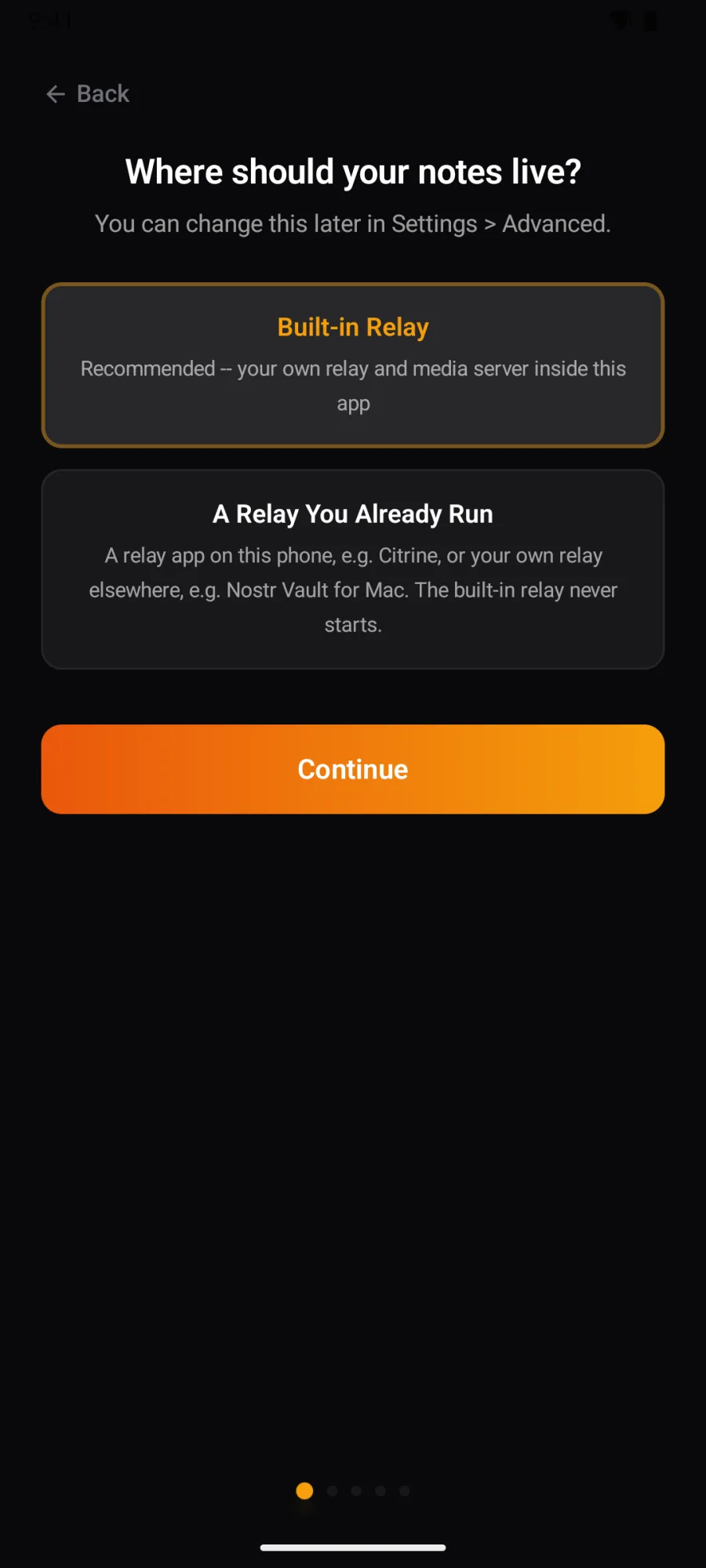
You can change it later in Settings → Database & Reset → Use External Relay. (The setup screen itself still says "Settings > Advanced"; that wording is out of date.)
Create an account
- Welcome to Nostr. Tap Create My Account.
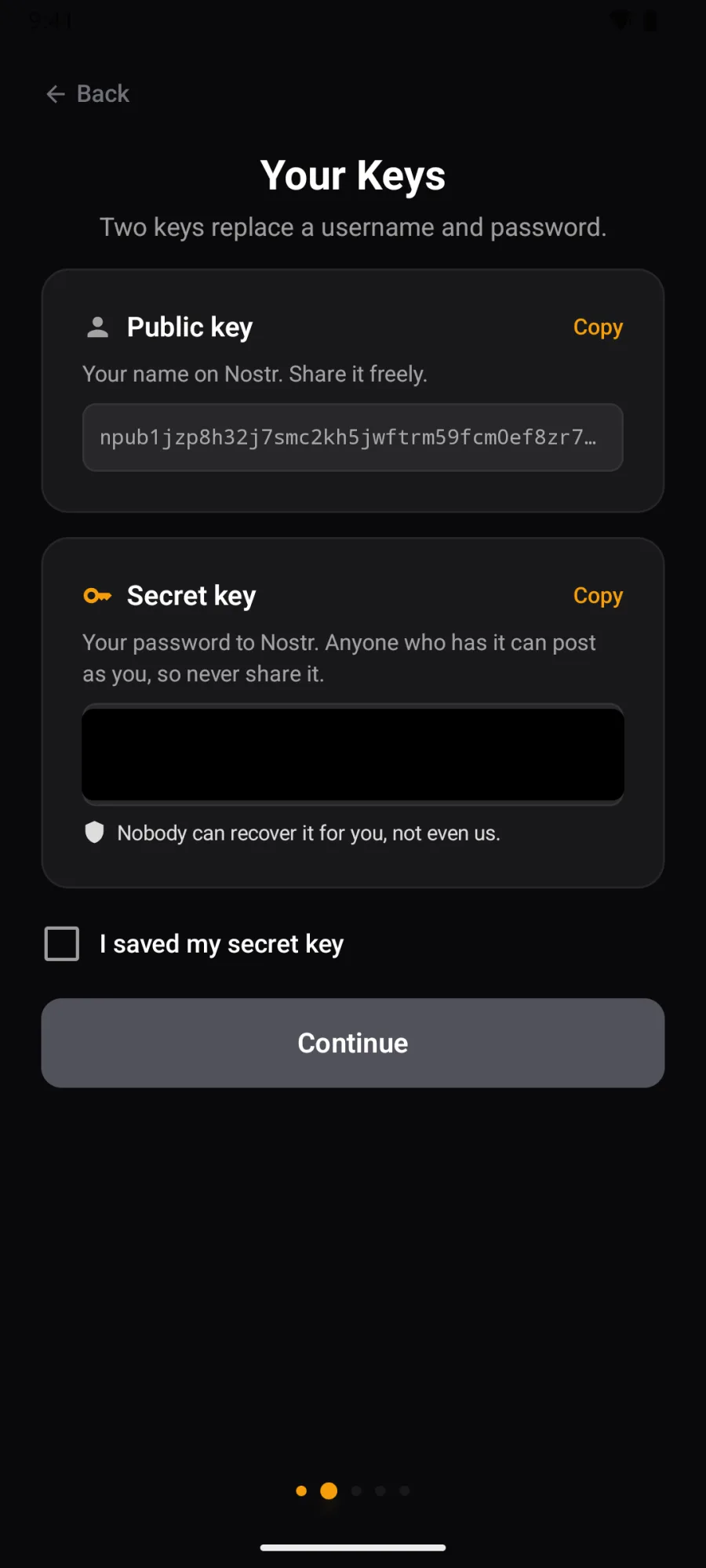
- Your Keys. The public key is your name on Nostr; share it freely. The secret key is your password; anyone who has it can post as you. Copy it into your password manager. Nobody can recover it for you. Tick I saved my secret key, then Continue.
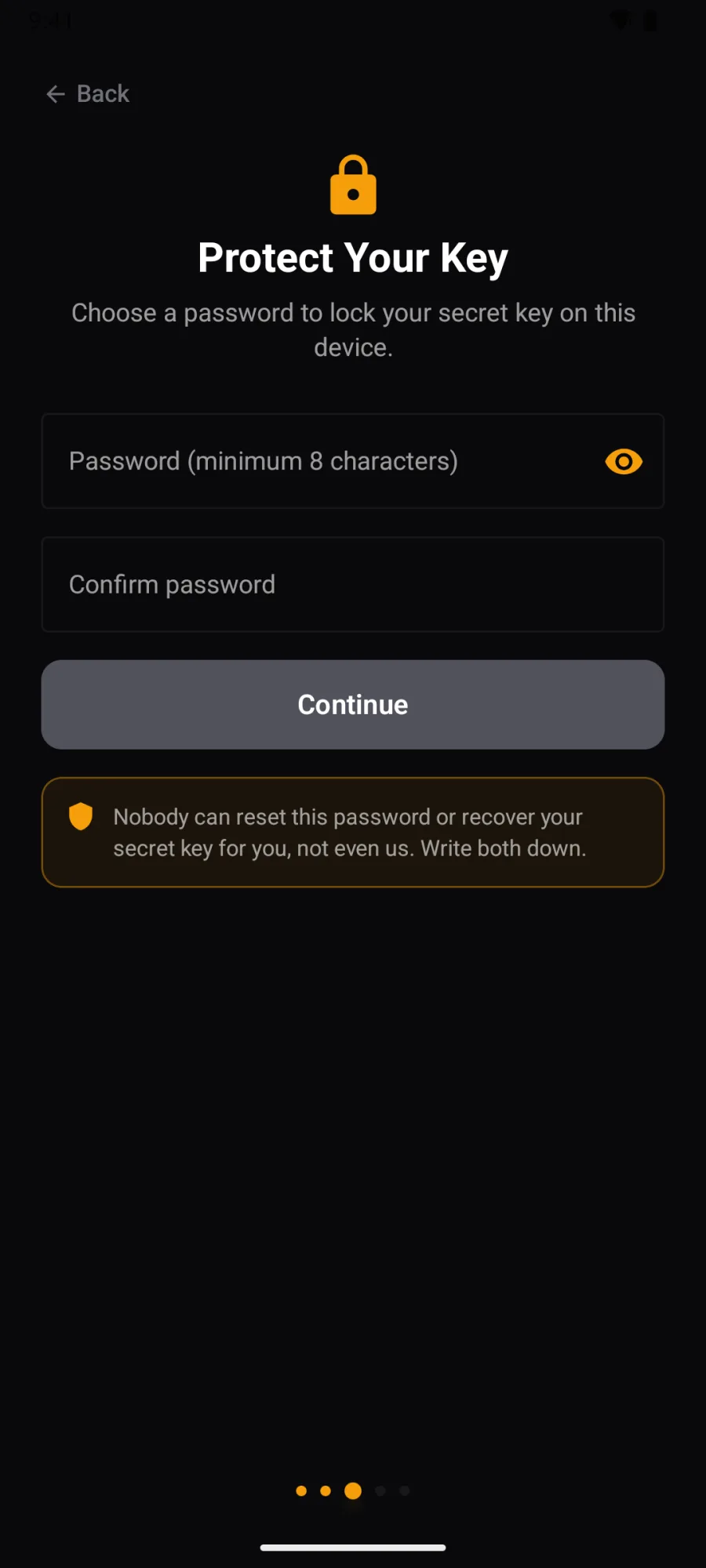
- Protect Your Key. Choose a password of at least 8 characters. This password locks the secret key you just saved. It stays on this device only and is never sent to us or any server. We cannot recover or reset it. If you forget it, the secret key you saved is your only way back in.
- Your Profile. Add a photo and a name, or tap Skip for Now.
- Who told you about Nostr Vault? See below.
- Your posts will be shared through these servers. The relays your posts go out to. Tap Continue to keep them, or Change to pick others. You can change them any time in Settings → Relays.
- Welcome to Nostr! Tap Start Exploring, then follow the short guide that helps you find people. Five follows build your web of trust, which fills your feed and filters out spam.
Bring the account you have
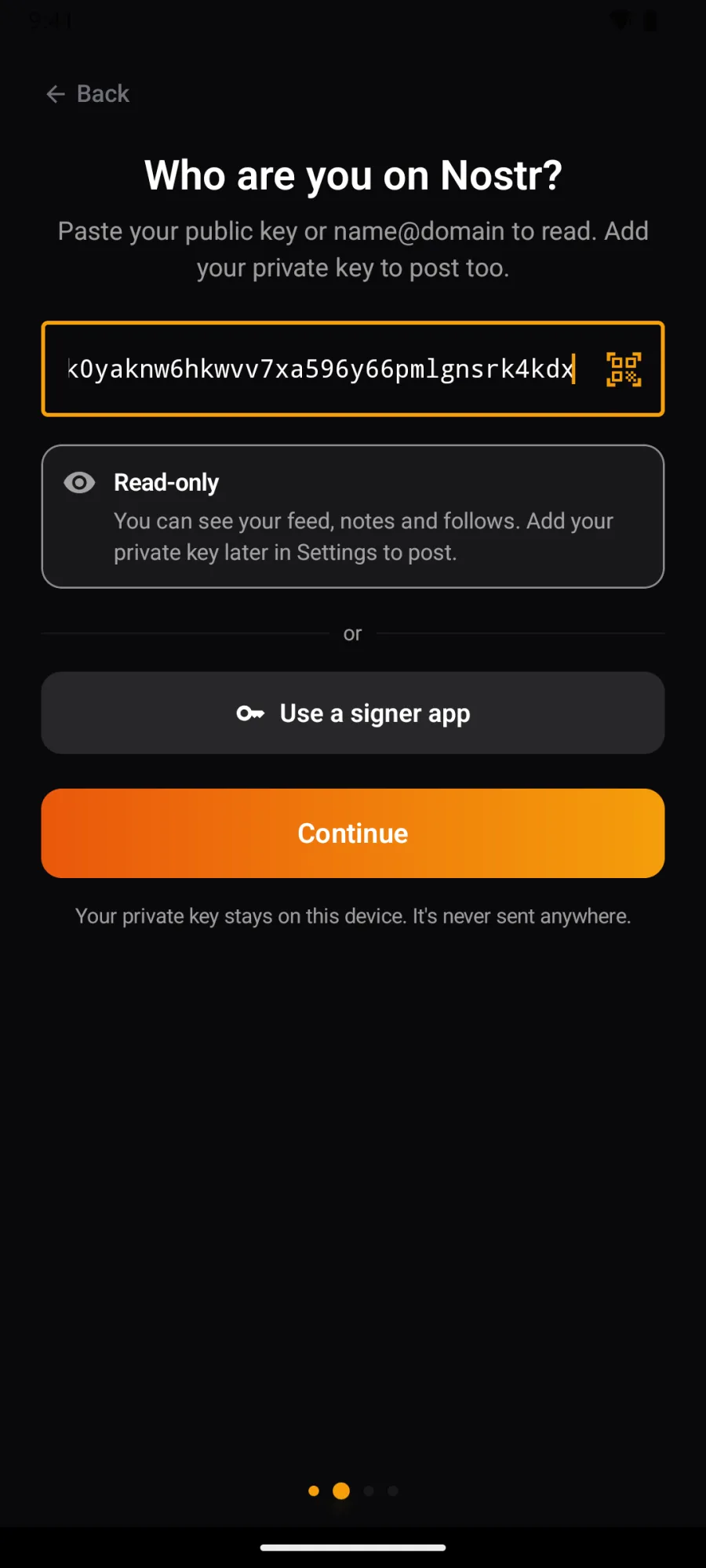
- Tap I already use Nostr, choose where your notes live, and the screen asks Who are you on Nostr?
- Paste your npub or name@domain (Read-only), your nsec (You can post, and you choose a password), an ncryptsec (Encrypted key · you can post), or a bunker:// link (Signer link · you can post). The QR icon in the box (Scan a QR code) reads a QR code.
- Or use a signer, so your secret key never enters Nostr Vault:
- Use Amber shows when Amber is installed on this phone.
- Use a signer app then Sign in with a signer app opens Amber or another signer on this phone, or shows a code to scan with a signer on another device.
- Who told you about Nostr Vault? If you can post, see below.
- Do you have a Vault backup? If you have a backup .zip from Nostr Vault, tap Yes, restore my backup and pick it: your notes come back at once and the relay import is skipped. Otherwise tap No, import from my relays.
- Checking your relays. The app looks for your notes on the import relays, and also on the write relays you published yourself (marked yours; read for this import only, never saved). When it's done the title says Ready to import. Change import relays lets you turn relays off or add one. Tap Start import.
- Bringing your notes home. A few cards explain the import: Next moves on, and the last card has Enter. On the last card you can also tap Keep it running in the background and start using the app; when the import is done, tap Jump in.
Who told you about Nostr Vault?
If you create an account, or bring one you can post with, setup asks Who told you about Nostr Vault? It comes after Your Profile, or after Who are you on Nostr?. Read-only accounts skip it.
- Scan their profile code with the QR icon, or paste their profile link or npub, and tap Find them. Their link comes from Share profile; see Share your profile. If you opened their link before setting up, they're already filled in.
- Check their profile card, and follow them. Not them? Change goes back.
- Up to 10 people they follow come next, the most followed first, all ticked. Untick anyone you don't want, and follow the rest.
Nobody told you? Tap Skip.
Find your way around
The tab bar along the bottom has Feed, Search, Profile in the middle, WoT (your web of trust) and Vault (everything your relay keeps, and your messages). The gear on your Profile opens Settings.
Replay the app's short tours from Settings → Help → Tutorials.
Next
- Your keys and accounts
- The mesh: connect your phone to your Mac and your other devices.